
Viewing and Deleting Whitelist Entries
Viewing the Whitelist
Selecting Tuning > Whitelists from the sidebar menu shows the Whitelist rules page, which lists all whitelists.
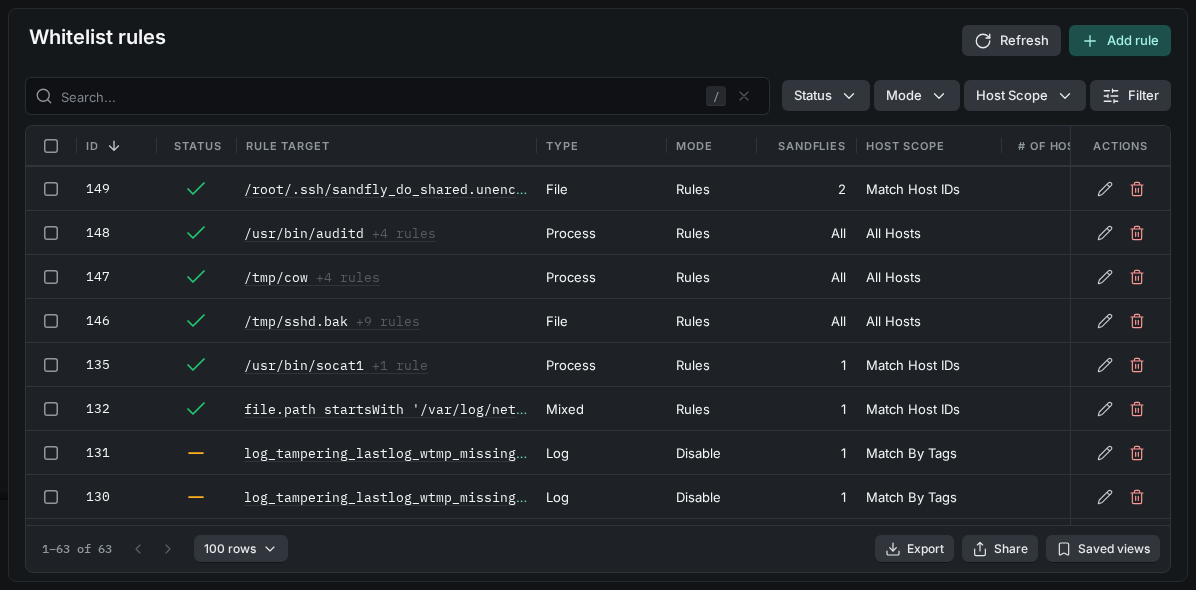
Whitelist Rules
Single-click any linked value in the Rule Target column or double-click a row to open the whitelist's Details page, which contains detailed information about the selected whitelist. The page has two tabs:
- Summary - Shows the whitelist's details, comment, rule target (sandflies), and rules.
- Host Matches - Lists the hosts in the whitelist's scope that have been scanned.
The whitelist can be deactivated / activated, edited, or deleted via the action buttons in the top right corner. On the Summary tab, the Edit button on the Rule Target, Rules, or Comment card changes only that part of the whitelist. The Rules card does not have an Edit button for a whitelist in the Disable mode.
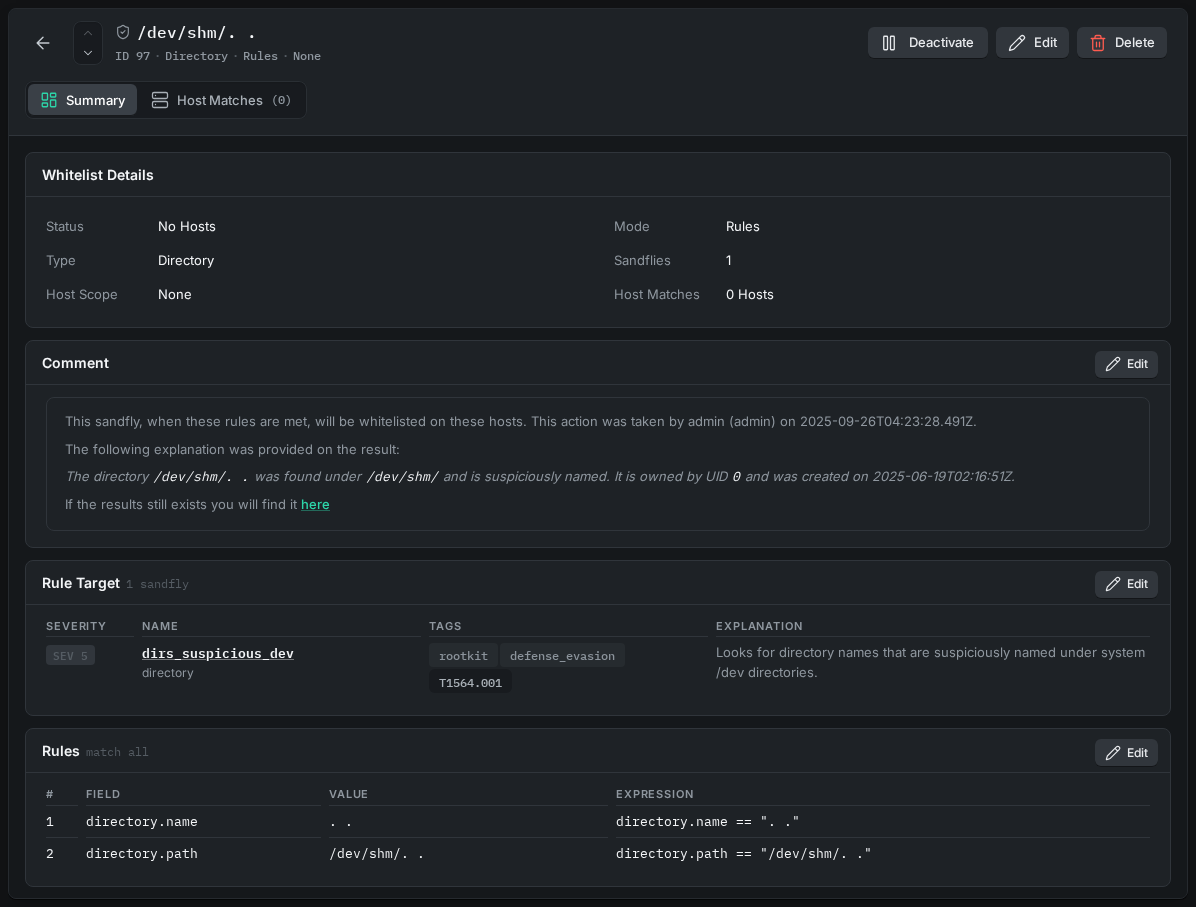
Whitelist Details Page
To view the whitelists that apply to a single host, open the host's Details page and select Operations > Whitelists.
Deleting Whitelists
While on the Whitelist rules page, select one or more whitelists, and then click Delete in the bulk actions bar to remove them. Alternatively, a single whitelist can be removed via the delete icon in the Actions column or the delete option on the whitelist's Details page. Confirm the deletion when prompted.
Activate / Deactivate Whitelists
While on the Whitelist rules page, selecting one or more of the checkboxes will allow you to activate or deactivate the designated whitelists via the Activate or Deactivate button in the bulk actions bar. Alternatively, a single whitelist can be activated or deactivated from the whitelist's Details page via the Activate or Deactivate button, which alternates its label depending on the current status of the whitelist.
An inactive whitelist does not apply to scans.
Updated about 7 hours ago