
Drift Detection Profiles
The Drift Detection Profiles page provides a full list of profiles along with available actions. It is accessed via the "Drift Detection" sidebar menu option.
A drift profile collects basic metadata about all results that it includes. For each result, it stores the sandfly name, the status (pass, error, or alert), and the permissive and moderate hash match values for the result. These hash match values are what power both the drift detection and whitelisting: they are cryptographic hashes of a set of key forensic attributes that the Sandfly investigation engines collect: for example, for processes, the permissive hash match includes the process name and the process executable path, while the moderate hash match additionally adds the sha512 hash of the process executable itself. This allows you to control how closely a similar process on another host must match to be whitelisted or alerted as drift. In the case of this process example, it allows you to choose whether the same executable with the same name is considered "the same" even if a different version (and thus a different sha512 hash of the content) is installed, or if you want to use the more strict moderate hash match and consider different executable content, even of the same name and path, to be considered different.
Over time, you can add additional results to drift profiles to fine-tune them. For example, you may initially create a drift profile using the recon_process_list_all sandfly to gather expected running processes on a model host. However, there may be scheduled tasks that aren't always running, so those processes may create drift alerts on future scans. You can easily add those new alerts to the existing profile, then that process will no longer alert on all of the hosts covered by that drift profile.
Page Overview
The data table provides a complete list of existing Drift Profiles with a summary of important data elements, including the profile's state, quantity of drift and whitelisted hosts, and the number of sandflies that have applicable results.
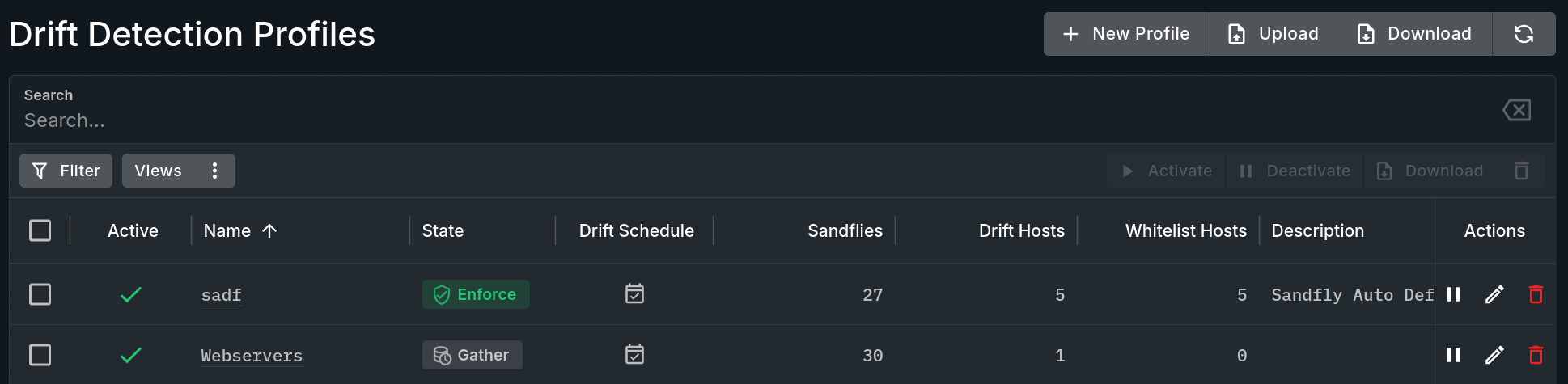
Drift Detection Profiles View
Creating Profiles
Click on the New Profile button to start a wizard that will guide you step-by-step in the creation of a new profile. See the Drift Detection Wizard documentation for further details.
Viewing Profiles
Single click on any hyperlinked value or double click on a row to open a panel that contains detailed information about the profile. See the Drift Profile Details documentation for further details.
Editing Profiles
To edit an entry, click on the pencil icon in the Actions column. Depending on the profile it will either open a form (for older profiles) or provide a list of editing options (for newer profiles), which then opens a form based on the selected edit option.
Appending Profiles
To add additional results to a profile (such as new expected recon results for drift, or new false positive alerts for whitelisting), select the desired results, then use the Drift > Add to Existing Drift Profile option found on tables that list results. This will open the "Append Profile" form where you minimally need to select the Drift Profile and submit the form.
With safe mode enabled, results will only be appended to the selected profile if:
- The result is an alert that can be used for profile-based whitelisting.
- The result can be used for drift by a sandfly that is already used for drift in the profile.
The intent here is that if you are appending to a drift profile with a broad brush (e.g. by host ID, or by “selecting all” in the Results By Sandfly list and choosing to add to profile), you do not accidentally enable drift on new sandflies that were not previously part of the profile (potentially creating a lot of false positive noise with drift alerts on all of the covered hosts).
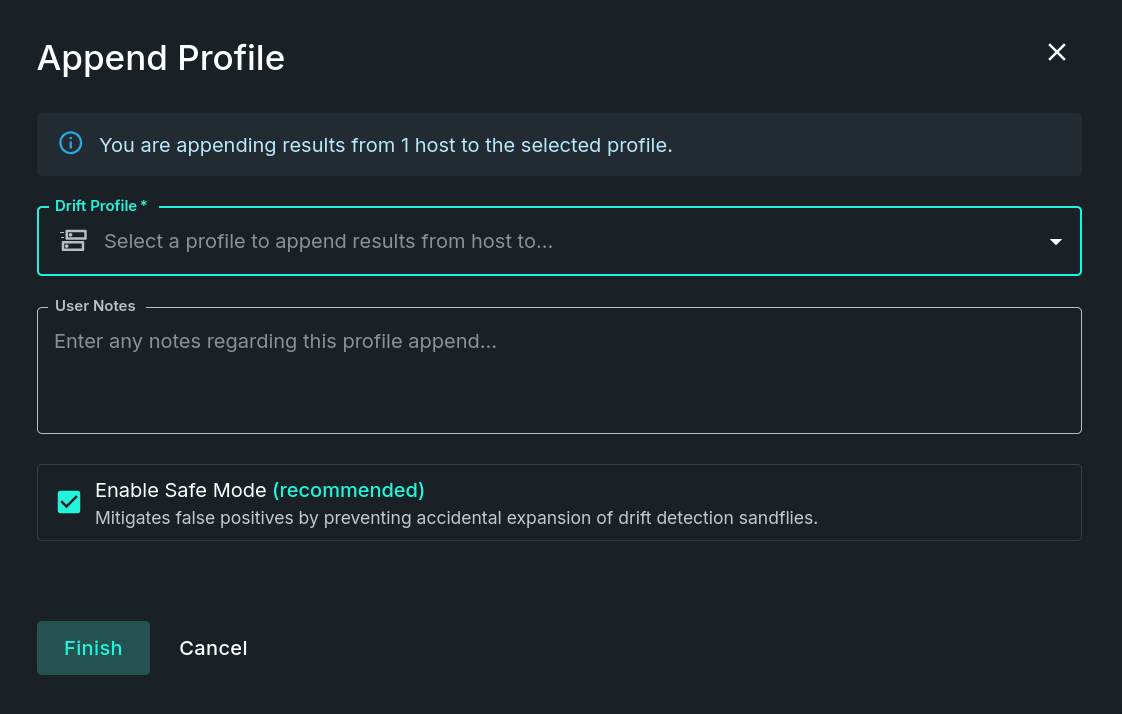
Append Profile Form
Deleting Profiles
To delete profiles, simply click on the trashcan icon in the Actions column of any single row or select multiple rows and then click on the bulk delete button in the table's toolbar.
Table-Level Button Bar
The row of buttons in the upper right corner of the data table allow you to perform the following bulk functions after selecting one or more rows via the checkbox column:
- Activate - Sets the selected profiles to "active", allowing them to be applied to newly processed results. This action can also be done on a single row basis by using the associated button found in the Actions column.
- Deactivate - Sets the selected profiles to "inactive", stopping them from being applied to newly processed results. This action can also be done on a single row basis by using the associated button found in the Actions column.
- Download - Generates and downloads all of the selected drift profiles to a file via the browser.
- Delete - Deletes all of the selected profiles.
Panel-Level Button Bar
The row of buttons in the upper right corner allow you to perform the following functions:
- New Profile - Starts the Drift Detection Wizard which guides you through the process of creating a new profile.
- Upload - Opens the Upload Drift Profiles form which is used to import a drift profiles JSON file.
- Download - Using this button will generate and download all existing drift profiles to a file via the browser.
- Refresh - This button reloads all of the data used within this page while keeping any filters or searches.
Drift Profile Export / Import
Drift Profiles can be exported or imported through the use of the Download and Upload buttons on this page.
The primary use case here is to move profiles from one Sandfly server (e.g. in a test lab building a profile of your server VM images) to another Sandfly server (e.g. the production environment where you then have VMs deployed based on the template images from your test lab). Alternatively, it can be used as a form of profile backup when downloading all profiles.
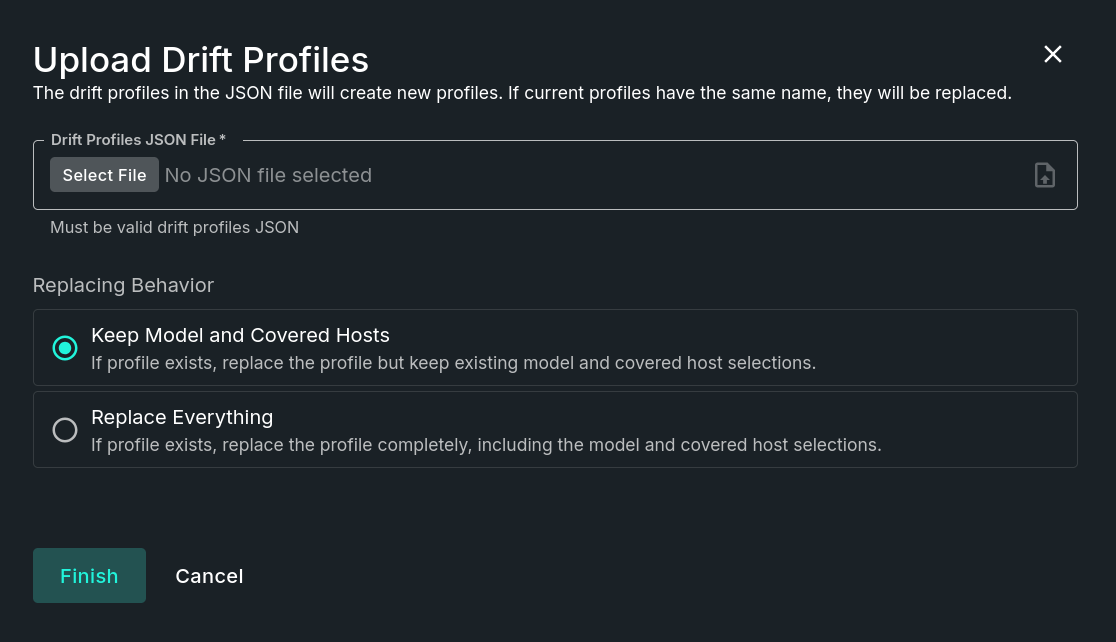
Upload Drift Profiles Form
When uploading a valid drift profiles JSON file, one of two replacing behaviors must be selected in the form:
- Keep Model and Covered Hosts - If the profile exists, replace the profile but keep the existing model and covered host selections.
- Replace Everything - If the profile exists, replace the profile completely, including the model and covered host selections.
Important Importing Information
- Results in the profile are always fully replaced, and you have the option to replace or merge (keep) the model / covered host lists (both tags and individual hosts).
- When importing profiles, they will always be imported in “enforcing” mode unless the profile already exists in the target system and is currently in gather mode.
- For example: if you create a profile on System A with a gather period, and you export the profile before the gather period is complete and then import it on System B, the profile will be in enforce mode [with the configured scan schedule, if applicable] on System B, not gather.
- When importing profiles, any related schedules that get created/updated will always be in an Active status (the profile export doesn’t keep track of if associated schedules have been manually paused on the exporting system).
- The full result JSON for results in the profiles are not carried over to the system you import the profile to, only the key data item.
- Custom sandflies that are listed within an exported drift profile do not include the actual custom sandfly JSON. If they are intended to be included in any imported profiles then those custom sandflies must be imported separately before importing any profiles that contain them.
- Individually assigned model and covered hosts are listed within an exported drift profile, however, those hosts will only remain associated to a profile that is uploaded onto a different Sandfly server if the Host IDs are identical before importing any profiles that contain them.
Updated 3 months ago