
Drift Profile Details
The Drift Profile Details panel provides full profile data and available actions. Detailed information is contained within expandable sections and categorized by tabs.
Panel overview
The panel is split into three sections. A main area for data table and lengthy content; the header area which contains action buttons and tabs that change the main body area; and a side panel area containing specifics about the profile separated into several sections which can be expanded or collapsed as needed.
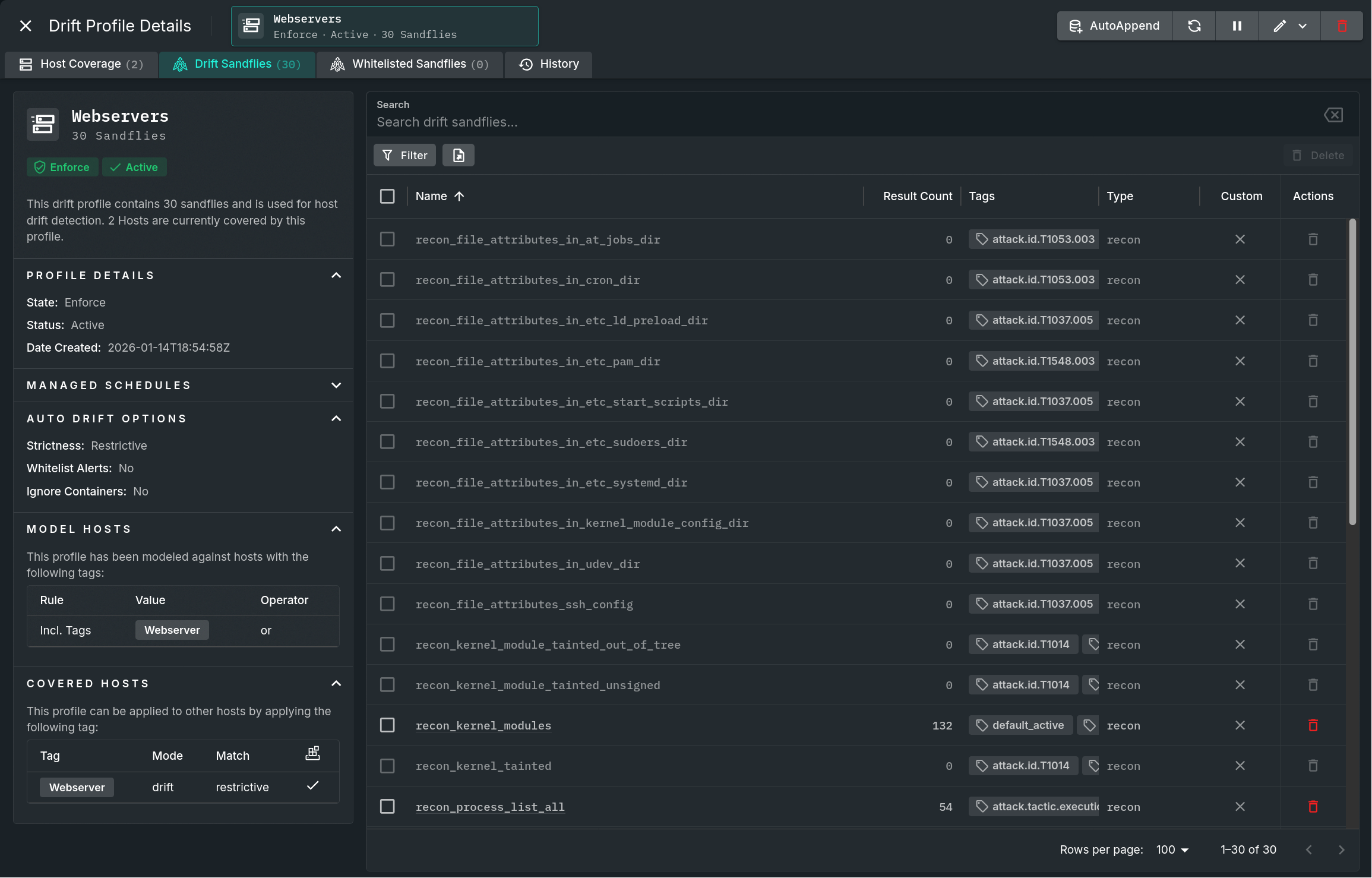
Drift Profile Details Panel
Additional information about specific areas is broken out below.
Tabs
Clicking on a non-selected tab will change the contents of the main body; options include:
- Host Coverage - Shows a list of all hosts that are covered by this profile. These hosts are included either as a part of the defined tags or they have been individually specified in the profile. Both types of definitions are shown in the "Covered Hosts" section of the left panel.
- Drift Sandflies - Shows a list of all sandflies that have been added as a drift result for this profile. Clicking on the hyperlinked name or double-clicking on a row will open a "Profile Result Hashes" panel which displays every result that is currently used for that sandfly for this drift profile.
- Whitelisted Sandflies - Shows a list of all sandflies that have been whitelisted for this profile. Clicking on the hyperlinked name or double-clicking on a row will open a "Profile Result Hashes" panel which displays every result that is currently used for that sandfly for this whitelist profile.
- History - Shows the chronological comment history of this profile, beginning with the most recent activity.
Page-level button bar
The row of buttons in the upper right corner allow you to perform the following functions for that profile:
- Enforce - End any gather schedule and start enforcing this profile.
- This button is only present for auto-drift profiles that are in Gather mode.
- Restart - Restart this profile gather schedule.
- This button is only present for auto-drift profiles that are in Gather mode.
- AutoAppend - Appends all of the allowed results to the profile upon form submission.
- This button is only present for auto-drift profiles.
- Refresh - Reloads all of the data used within this panel while maintaining any filters or searches.
- (De)Activate - Toggle whether this profile's state is Active or Inactive.
- Edit - Edit this profile. If it is an auto-drift profile, it will first present a sub-menu of edit forms.
- Delete - Deletes this drift profile.
Updated 9 months ago