
SSH Key Response Actions
SSH key-based response actions require the Responder role; only then are the actions displayed under the Respond menu button, which is found on the 'SSH Key' details panel and/or as buttons within the Actions columns of the SSH Hunter.
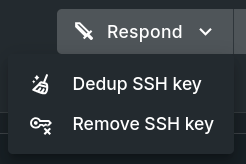
SSH Key Respond Menu Button with Options
Response Actions
Available response options are relative to the conditions of the SSH key, which are detailed below. Not every key will have an action available.
Every requested action and its result will be recorded in the Response Action Log. As an added precaution, a timestamped backup copy of any modified authorized_keys and/or authorized_keys2 files will be created on the target host within the same directory as the modified file.
Key Deduplication
The key deduplication action is available for a public key string that is contained within more than one instance, regardless of other differences in the matching entries, whether across users or hosts. This action is not available for keys marked as Dead, nor does it affect them.
Using this action keeps the first of the matching key data entries and removes all subsequent matching lines. This first matching method duplicates the behavior used by OpenSSH. Key entries that are commented out (i.e., have a # at the beginning of a line) will not be included in the deduplication, providing an alternative way to shield entries from being affected by this action.
Deduplicate SSH Key Form
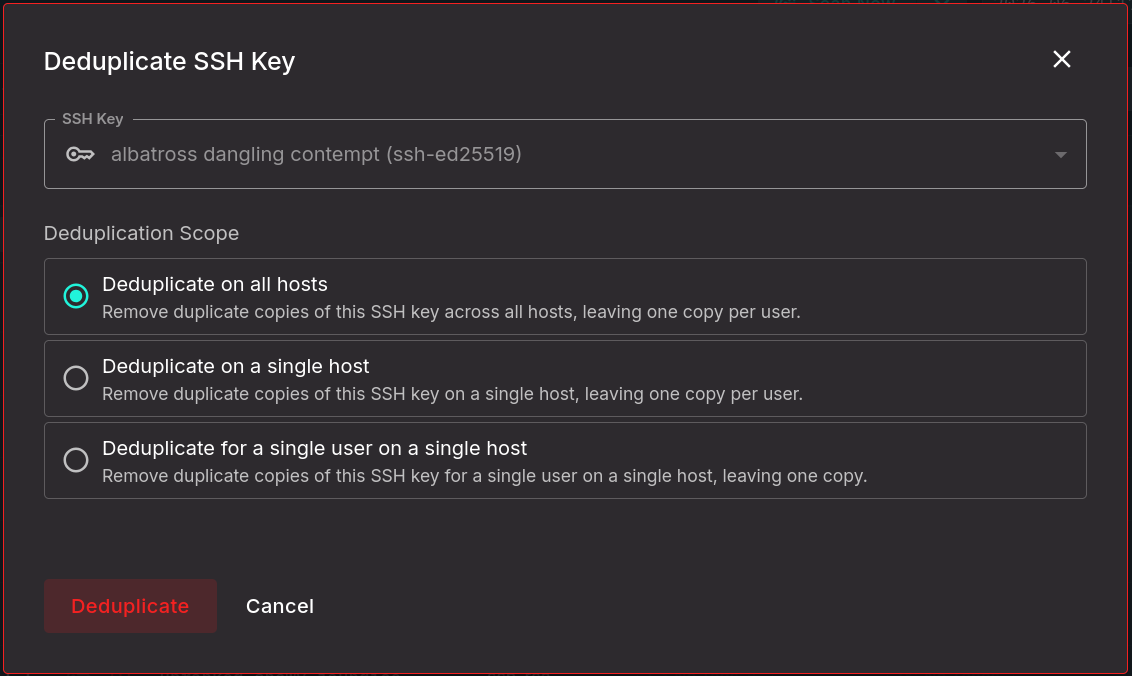
Deduplicate SSH Key Form
Deduplication Scope choices include:
- Deduplicate on all hosts - Remove duplicate copies of this SSH key across all hosts, leaving one copy per user.
- Deduplicate on a single host - Remove duplicate copies of this SSH key on a single host, leaving one copy per user.
- Deduplicate for a single user on a single host - Remove duplicate copies of this SSH key for a single user on a single host, leaving one copy.
Key Removal
The SSH key removal response action allows responders to remove all instances of a specific SSH public key on hosts. This action does not remove keys that are tagged as Protected or marked as Dead (since, by definition, "Dead" means there are no copies of the key in use). In addition, by default it will not remove a key if doing so would leave a host with no remaining known SSH keys, protecting against accidental lockout.
TIP: Protect all SSH keys that are used by SandflyWe recommend protecting all SSH keys that are Sandfly Credentials to aid in maintaining operational functionality. Should a key used for Sandfly be removed, the host(s) will produce an authentication error in future connection attempts. Sandfly 5.8 and later will automatically add the public keys for new SSH credentials to SSH Hunter and mark them as protected.
Delete SSH Key Form
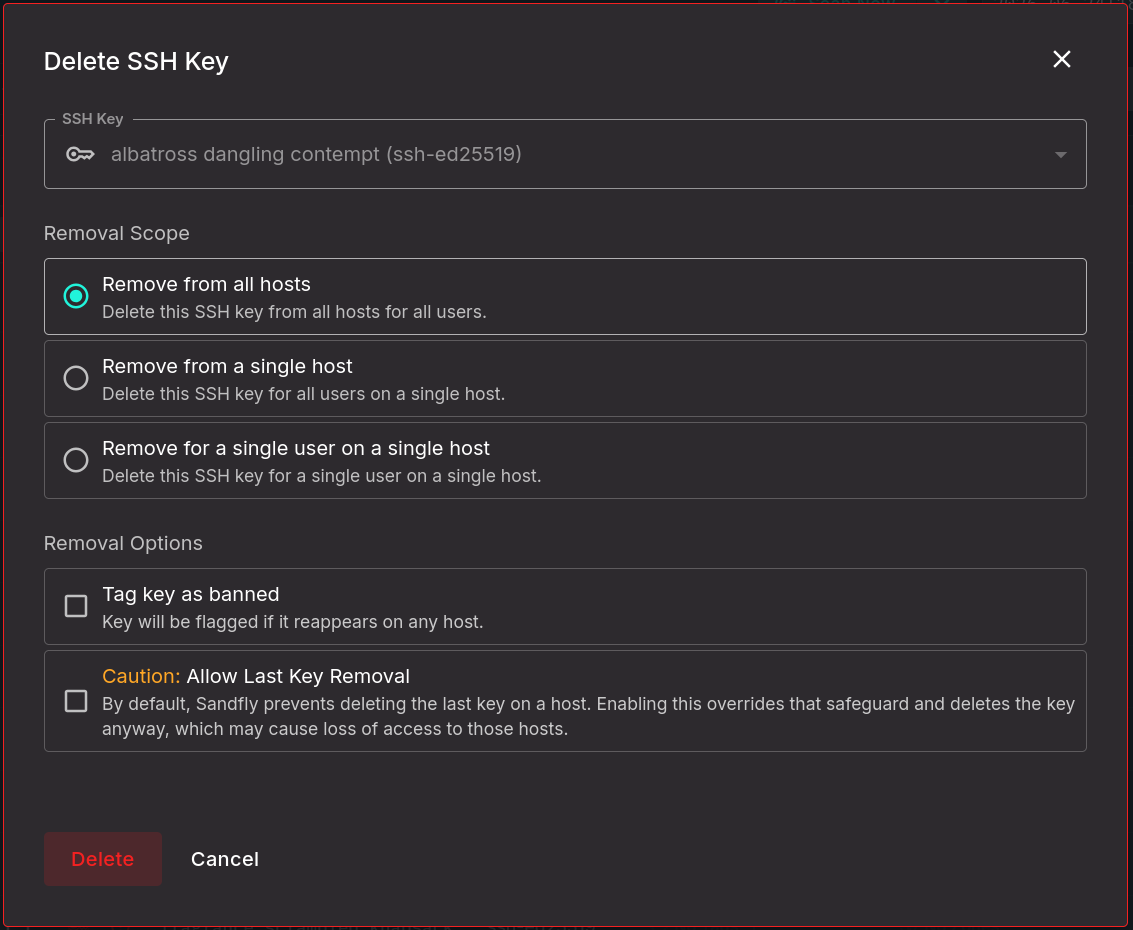
Delete SSH Key Form
Removal Scope choices include:
- Remove from all hosts - Delete this SSH key from all hosts for all users.
- Remove from a single host - Delete this SSH key for all users on a single host.
- Remove for a single user on a single host - Delete this SSH key for a single user on a single host.
Removal Options choices include:
- Tag key as banned - The key will be flagged if it reappears on any host.
- Allow Last Key Removal - By default, Sandfly prevents deleting the last known key on a host. Enabling this overrides that safeguard and deletes the key anyway, which may cause loss of access to those hosts.
Key Protection
SSH keys that have the Protected key tag prevent those keys from being removed from hosts by any response action. Protect all SSH keys that are used for Sandfly connectivity.
Within SSH Hunter, there are two basic ways to protect an SSH key:
- Add the "Protected" key tag from any key tags editor.
- Use the "Protect SSH key" option from any key-related Tune menu button.
To end key protection, simply remove the key tag at any time.
Auto-Protection
To protect against accidental removal of credentials that Sandfly uses to access hosts, Sandfly will automatically add the public key for SSH key Credentials to SSH Hunter and set them as Protected keys. Credentials added to Sandfly prior to version 5.8.0 must be manually protected. To use the Delete SSH Key action on these keys, you must first remove the protected status.
Updated 4 months ago