
Task Queues
The Task queues page shows the work that Sandfly has waiting or in progress: the scans and host additions for the scanning nodes, and the hosts and artifacts waiting for an AI triage verdict. To open it, click the Task queues button in the Top Bar, or in the sidebar menu, select Scanning > Task queues.
The page has two views. Select Scan tasks (the default) or AI triage at the top of the page.
The page header has two actions that apply to both views:
- Refresh - Read the scan tasks and the AI triage queue again.
- Stop auto-refresh and Start auto-refresh - Stop or start the automatic update of the lists. While auto-refresh is stopped, the lists hold still, but the counts and warnings stay live.
Scan Tasks View
The All tasks table lists every scan and host addition that waits for, or runs on, a scanning node.
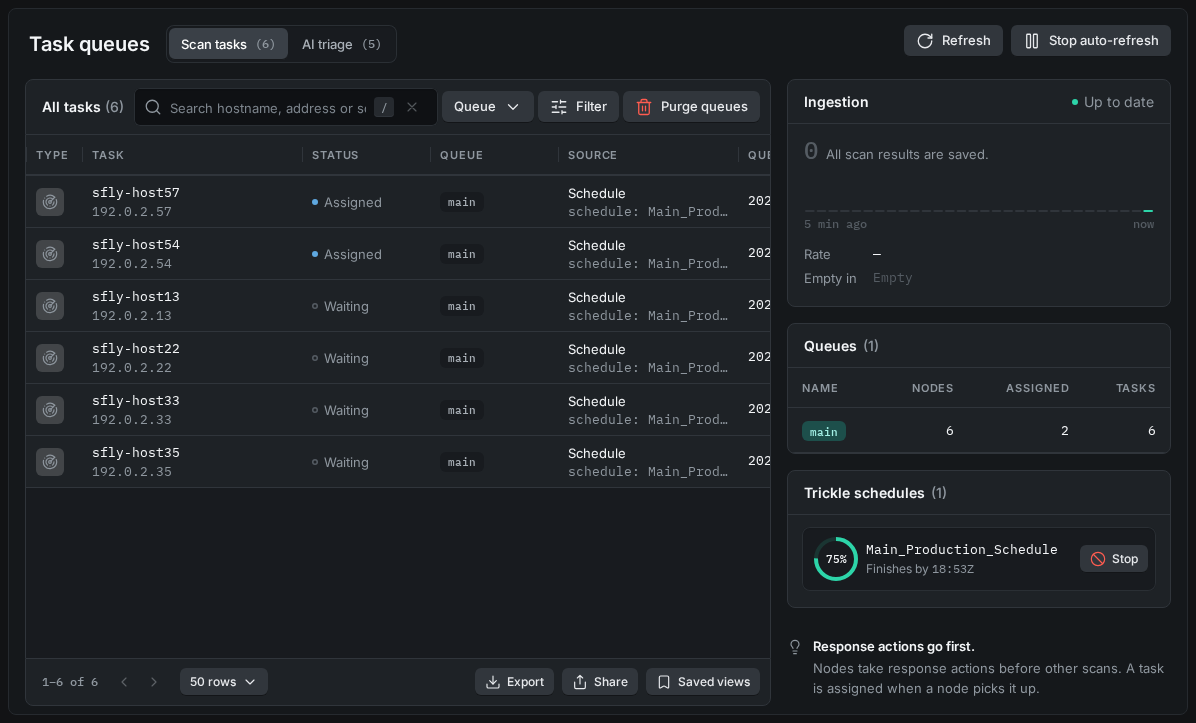
Scan Tasks on the Task Queues Page
| Column | What it shows |
|---|---|
| Type | Scan (runs sandflies) or Host add (adds a host). |
| Task | The host or the work of the task. A response action shows a Priority chip, because nodes take response actions before other scans. |
| Status | Waiting (no node has picked up the task yet) or Assigned (a node has picked it up). |
| Queue | The queue the task is in. See Named Queues. |
| Source | What put the task on the queue, such as a schedule or a manual scan. |
| Queued | When the task was added to the queue. |
| Run ID | The ID of the scan run. |
Use the Queue quick filter to show the tasks of one queue.
The cards next to the table show:
- Queues - Each queue, with its number of tasks and assigned tasks. Click a queue to show only its tasks. A queue with no online node is marked.
- Ingestion - The scan results that wait to be saved into the database, the queue depth over the last 5 minutes, and an estimate of when it will be empty (Empty in). During the nightly database maintenance, the card shows "Database maintenance is in progress."
- Trickle schedules - The progress of each running trickle schedule. Click Stop to stop scanning the hosts that the run has not put on the queue yet.
Purge queues removes every waiting task from every queue. Scans that are already running carry on. Use it only when stuck tasks block new scans. You must confirm before the queues are purged.
The view shows a notice when something stops the queue:
- The host limit is exceeded. - Schedules are paused. Remove hosts or update the license to start them again.
- No scanning nodes are online. - Tasks wait in the queue until a node connects.
AI Triage View
The AI triage queue table lists the hosts and artifacts that wait for, or are getting, an AI triage verdict, in the order they are worked. For what AI triage does, see AI Triage.
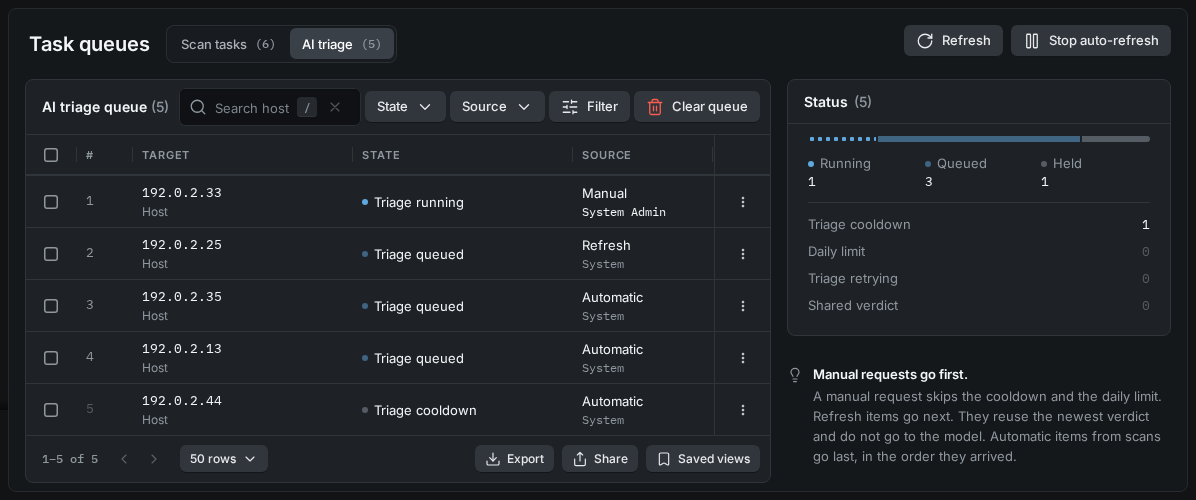
AI Triage Queue on the Task Queues Page
| Column | What it shows |
|---|---|
| # | The position in the queue. |
| Target | The host, or the artifact and its host. |
| State | Where the item stands. See the states below. |
| Source | Manual, Refresh, or Automatic. See the order below. |
| Time | When the item was queued, or how long it has waited. |
The states are:
- Triage running - A verdict is being formed now. A running item can also show Run again (it was asked for again while it ran, and goes back on the queue when it finishes) or Removing (it was removed while it ran; it finishes, then leaves the queue).
- Triage queued - Waiting its turn.
- Triage cooldown - Waiting out the minimum interval between verdicts for this host.
- Daily limit - The day's submission limit is reached. The item resumes when the next UTC day begins.
- Triage retrying - The last attempt failed or was rate limited. It will be tried again shortly.
- Shared verdict - Waiting for a verdict that is being formed for another host in the same situation, which this host will reuse.
The queue is worked in this order:
- Manual - Requests made by users. They skip the cooldown and the daily limit.
- Refresh - Items that reuse the newest verdict for the same situation. They do not go to the AI provider.
- Automatic - Items from scans, in the order they arrived.
The Status card shows how many items are running, queued, and held. Use the search field to search hosts and artifacts, and the State and Source quick filters to narrow the list.
To act on the queue:
- Run now - Run an item next. It skips the cooldown and the daily limit. Use it on a row, or select rows and use it on all of them.
- Remove from queue - Remove an item. Use it on a row, or select rows and use it on all of them.
- Clear queue - Remove every item from the queue.
The view shows a notice when something stops the queue:
- Nothing on the queue runs. - There is no AI configuration to run the queue on. Set up AI triage or AI analysis in the settings. See AI Configuration.
- The AI provider rate limit paused the queue. - No item starts before the time shown.
- Automatic triage is off. - Items from scans wait until it is turned on again. Requests made by users still run.
Updated 3 days ago