
Triage Artifact Detail
An artifact is one thing on one host that Sandfly examined: a process, a file, a directory, a user, a scheduled task, a kernel module, a log, or the operating system itself. When more than one sandfly matched the same thing, they share the artifact. The Artifact detail page holds everything Sandfly knows about it, and it is where you decide what the artifact is and what to do about it.
Opening an Artifact
- On the Triage tab of a host, click Triage artifact on the Artifact triage summary card, or double-click the row. See Triage Host Detail.
- On the Detections > Artifacts page, click the artifact's name or double-click the row.
- On the Detections tab of a host, click the artifact's name.
Use the previous and next buttons in the page header to step through the artifacts in the order of the list that you came from.
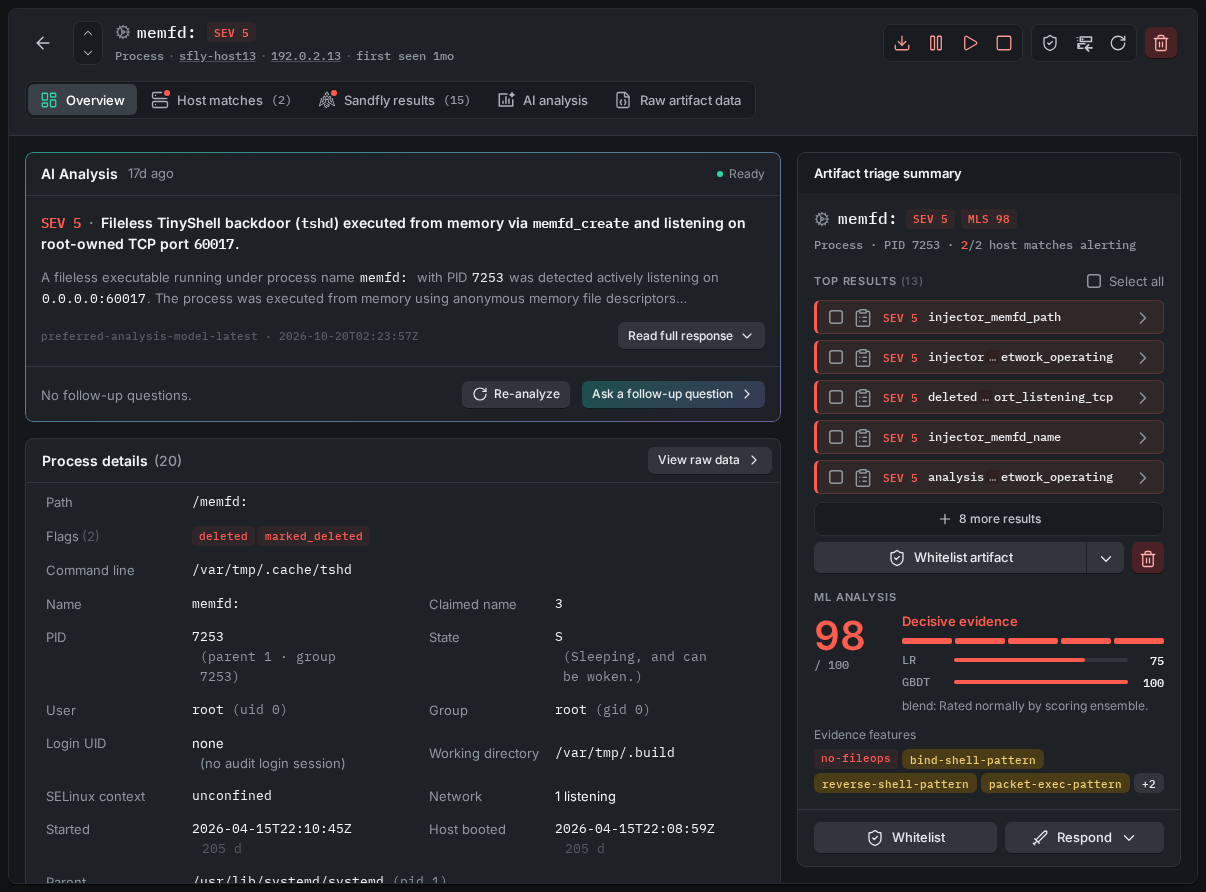
Artifact Details Page Overview Tab
The Header
The header shows the artifact's name, its severity, its kind, and the host where it was found. Click the hostname or the target address to open the host. The header actions are:
- Whitelist - Open the Whitelist dialog for this artifact, for all of its sandflies.
- Respond - Run a response action. Shows for users with the Responder role when response actions are enabled and the artifact is a process, file, cron, or at job artifact. See Response actions on an artifact.
- Refresh - Get the latest data for the artifact.
- Delete - Delete the artifact and all of its results on the host.
The Tabs
- Overview - The cards described below, with the Artifact triage summary card beside them.
- Host matches - Every other host that has a matching artifact, matched by hash, with the status on each. Use it to see whether the artifact has spread, and whether it alerts everywhere or only here.
- Sandfly results - The result of each sandfly that matched the artifact, including passes and results that a newer scan replaced. For the selected result: the explanation, information about the sandfly, the MITRE ATT&CK techniques, the hosts where the same result was seen, and the Raw result JSON card.
- AI analysis - The AI analyses of this artifact, when AI analysis is configured.
- Raw artifact data - The raw artifact data as JSON.
The Overview Tab
- Artifact details - The forensic data that the sandflies collected. For a process: its path, command line, parent, owner, start time, open files, and network connections. For a file: its path, owner, permissions, hashes, and timestamps. For a user: the account's shell, home, password state, and groups. The fields are described in the Sandfly Forensic Keyword List.
- Sandfly results - The sandflies that are alerting on the artifact, with their severities and explanations. Click one to open it on the Sandfly results tab.
- Host matches - How many hosts carry a matching artifact (Permissive and Moderate matches), how many of them are alerting, and the tags of those hosts.
- Response actions - The response actions that were run against this artifact, with their status and a link to the log entry.
- AI Analysis - The AI analysis brief for the artifact, or Analyze artifact to start one.
- Artifact triage summary - The same card as on the host's Triage tab: the AI classification, the Top results, the ML analysis, and the Whitelist and Respond buttons.
Reading the Evidence
Sandfly Results
Each alerting sandfly is one piece of evidence. Its explanation says what it matched and why that matters, in plain language; for example, that a process is running from a directory where executables do not belong, that a binary is not owned by any package, or that a user account has no password. The sandfly's tags and MITRE ATT&CK techniques say what kind of attack technique the finding belongs to.
Read every alerting result, not only the worst one. Two SEV 3 results that describe different suspicious properties of the same file are stronger evidence than either one alone.
The Sandfly results tab also shows results that passed and results that a newer scan replaced. A sandfly that alerted last week and passes today tells you that something changed on the host.
ML Analysis
For an executable, Sandfly's machine learning analysis of the binary gives a threat score from 0 to 99, shown as MLS nn, and a list of Evidence features: what the binary can do, as recovered from its code. The score is independent of the sandfly that raised the alert, so it is a second opinion.
- A score of 90 or more is where Sandfly's own high threat score sandflies alert. Treat it as a strong signal.
- A score of 0 is not a verdict of safe when the binary was not scored. The card says why, for example that no network capability was detected or that the program could not be decoded.
- The Evidence features are graded. Strong features (for example, hiding from process listings, raw socket access, or executing other programs from memory) are shown in the critical color. Supporting features are shown in the warning color. Hover over a feature to read what it means.
Spread Across Hosts
The Host matches card and tab answer the most useful question in triage: how many hosts have this?
- An artifact on one host out of hundreds, especially one that appeared recently, deserves a close look.
- An artifact on every host with the same tag is part of how those hosts were built. It is likely legitimate, but a shared weakness is still a weakness on every host.
- An artifact that alerts on some hosts and passes on others points at a difference between the hosts: a different version, a different owner, or a whitelist that one group has and the other does not.
The count is a snapshot of the hosts scanned so far. A new artifact may be on more hosts than have been scanned since it arrived.
AI Classification of an Artifact
The AI classifier block on the Artifact triage summary card gives an AI verdict for this one artifact, on request. Use it as a second opinion when the evidence above does not settle the question: click Run AI classifier, and read the brief and the reason for the severity it gives. For the states, the buttons, and what a classification changes, see AI Triage.
Procedure
Step 1: Identify the Artifact
Read the header and the Artifact details card. Answer these questions before you judge anything:
- What is it? A process, a file, a user, a scheduled task, or something else.
- Where is it? The path, and whether that is a place where this kind of thing belongs.
- Who owns it? The user and group, and whether they should own it.
- When did it appear? The first seen and last seen times, and the file timestamps.
- Is it still there? An artifact that a newer scan replaced is not still seen.
Step 2: Read Why It Alerted
On the Sandfly results tab, read the explanation of each alerting result. Group what they say:
- Properties of the artifact itself: location, ownership, permissions, hidden or deleted, not from a package.
- What it does: listening sockets, outbound connections, raw sockets, process hiding, privilege use.
- What it is for: persistence, credential access, reconnaissance, defense evasion. The MITRE ATT&CK techniques say which.
Step 3: Weigh the Second Opinions
- Read the ML analysis for an executable. A high score with strong Evidence features that match what the sandflies say is a confirmation. A score of 0 that was not scored proves nothing.
- Read the Host matches. Decide whether the artifact is unique, part of a group, or everywhere.
- If AI triage is available and you are not sure, click Run AI classifier and read the brief and the reason for its severity.
Step 4: Place It on the Host
Click the hostname to open the host and look at the Host info tab. A listening port is expected on a web server and unexpected on a workstation. A process started by cron at 03:00 means something different from one started from an interactive shell. A new user matters more when a scheduled task changed at the same time. Come back to the artifact with that context.
Step 5: Decide and Act
| Your conclusion | Do this |
|---|---|
| Legitimate and expected here | Click Whitelist. In the Whitelist dialog, scope it to Selected hosts (this host), Hosts by tag, or All hosts, and pick the strictness. To whitelist only some of the sandflies, select those results on the card and use Whitelist selected. |
| Legitimate, but should not be like this | Fix it on the host (change the password, correct the permissions, remove the key). Do not whitelist it. |
| Suspicious, more analysis needed | With the Responder role, use Respond > Retrieve binary or Retrieve file to pull a copy for offline analysis. Click Pass to AI analysis for a written report. Flag the host. |
| Malicious | With the Responder role, use Respond > Suspend process to freeze it, then Retrieve binary. Isolate the host by your incident response procedure. Keep the artifact; do not delete it. |
Step 6: Record and Verify
- Every response action is recorded in the Response action log, with the artifact snapshot. See Response Action Log.
- Scan the host again. On the Detections tab of the host, confirm that the artifact is superseded or that it is still seen.
- If you whitelisted it, confirm on the Sandfly results tab that the results now carry the Whitelisted tag.
Response Actions on an Artifact
The Respond menu runs a response action on the host, against this artifact. It needs the Responder role, and response actions must be enabled on the Server and the Node. See Result Response Actions for the rules.
- Retrieve binary (process) or Retrieve file (file, cron, or at job) - Pull a copy of the binary or file into Sandfly, for download from the Response action log. Files larger than 100 MB cannot be retrieved.
- Suspend process, Resume process, and Kill process - For a process that is still running. Before it acts, Sandfly verifies that the process still runs and that its binary still has the hash recorded in the detection; otherwise the action fails with Verification failed.
CAUTION: Suspend Before You KillKilling a process destroys its memory, and with it the evidence of what it was doing. Suspending a process stops it from doing more harm while its memory, its open files, and its network connections stay available for analysis. Unless you are sure that a process must be stopped now, suspend it first.
IMPORTANT: Deleting an Artifact Is Not a Triage OutcomeDelete removes the artifact and all of its results from Sandfly. It changes nothing on the host, and it removes the evidence. If the artifact is a false positive, whitelist it so that it stays quiet. If it is malicious, keep it. Delete only data that you know is wrong, such as results from a host that was rebuilt.
Examples
A Process With a Deleted Binary
The artifact is a process named [kworker/0:1] running as www-data. The Artifact details card shows a working directory of /dev/shm, an executable path that is marked deleted, and an outbound connection on port 4444. Three sandflies alert: the process is masquerading as a kernel thread, its binary was deleted while it runs, and it runs from a memory-backed file system. MLS 96, with the strong features process hiding and raw socket. Host matches: this host only.
This is malicious. Suspend the process, retrieve the binary (Sandfly recovers it from memory even though it was deleted from disk), and isolate the host.
A SUID File in a Home Directory
The artifact is a file, /home/alice/.cache/bash, owned by root with the SUID bit set. Two sandflies alert: a SUID binary outside the system directories, and a copy of a system shell. MLS 12, not scored for network capability. Host matches: this host only. The file was first seen three days ago.
A copy of bash with the SUID bit set in a user's cache directory is a classic privilege escalation backdoor. It is not an intrusion in progress, but someone put it there. Retrieve the file, then look at the Users group and the SSH tab of the host to see how alice logs in and who else can. Fix the file, and open an investigation into how it got there.
A Backup Agent on Two Hundred Hosts
The artifact is a process, /opt/vendor/agent/agentd, running as root and listening on a port. One sandfly alerts: a listening process whose binary is not from a package. MLS 41. Host matches: 214 hosts, all with the tag backup-client, all alerting.
This is the agent that those hosts are supposed to run. Whitelist it with the Whitelist dialog scoped to Hosts by tag with backup-client. Do not whitelist it on All hosts: the same binary on a host that is not a backup client would be worth an alert.
A User With No Password
The artifact is the user svc_report. One sandfly alerts: the account has an empty password and a login shell. Host matches: 3 hosts. The Host info tab shows no login by that user, and no SSH key for it.
This is a weakness, not an intrusion. Set a password or lock the account on all three hosts, then scan them again. Do not whitelist it.
Tips
- Hover everywhere - Tags, features, scores, and finding text have hover titles that explain them in a sentence.
- Results versus artifacts - A sandfly result is one sandfly's opinion. The artifact is the thing itself. Whitelist by result when only one sandfly is wrong about a legitimate artifact; whitelist the artifact when the artifact is legitimate.
- Permissive or Moderate - A permissive hash match whitelists the artifact wherever the same thing appears, on the recommended fields. A moderate match needs more fields to match. Start permissive for vendor software that updates often; use moderate when a path or an owner matters.
- Use the raw data - The Raw artifact data tab has every field that Sandfly collected, including the ones that no card shows. Search it for a hash, a path, or an address.
Updated about 2 hours ago